Introduction
Jellyfin is two parts media server and media client. It offers a convient way to store, play and search your visual media collection even in a webbrowser. However, if you do not have as powerful a server transcoding media into web browsers acceptable media formats can cause a lower fidelity and framerate than desired on media play back.
Client
One of the solution to limit the amount of transcoding your server does is to use clients that can natively play a larger host of video file types than the web browser. Seeing how I wanted to watch some H 2.65 media on a macbook I decided to try to install the jellyfin client.
Jellyfin Resources
Links
How to install the Client
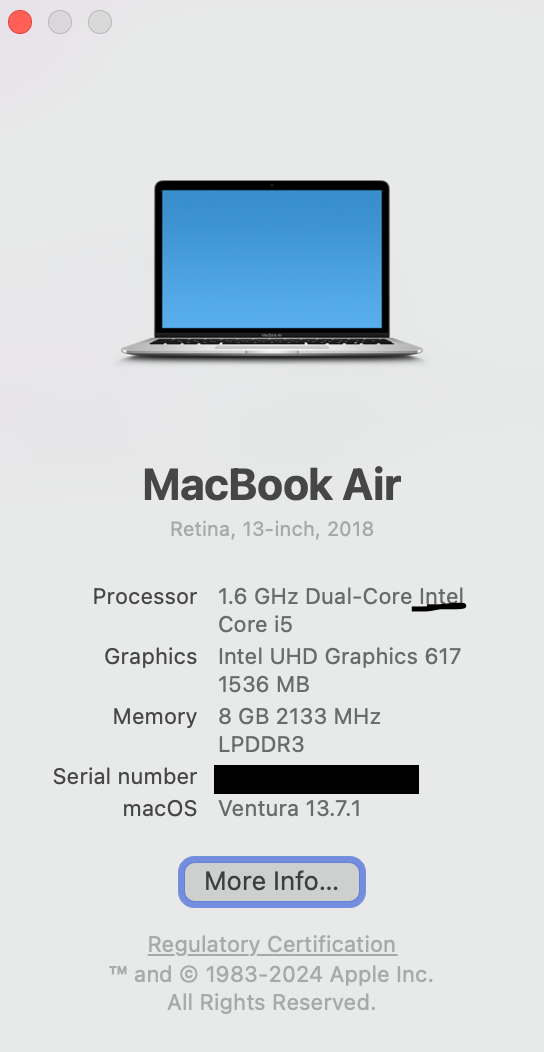
Go to Releases , scroll to the latest stable release and download the dmg. There are two types one for intel one for arm processors. The easiest way to tell what type you have is if you have a newer macbook from 2020 or later. If you need to check you can click on the apple logo in the top left corner -> About This Mac
You’ll come across a pop up like this one and see if its intel on the processor or not.
After downloading the dmg, double click the download and run the installer.
Using the Media Player
Now after install you can just run
cmd + spacebar
type Jellyfin and Jellyfin Media Player should show up. Now you can open it.
Type in your server address and there is is.